Tags
Group prompts by theme, funnel stage or campaign, then filter any prompt view by them.
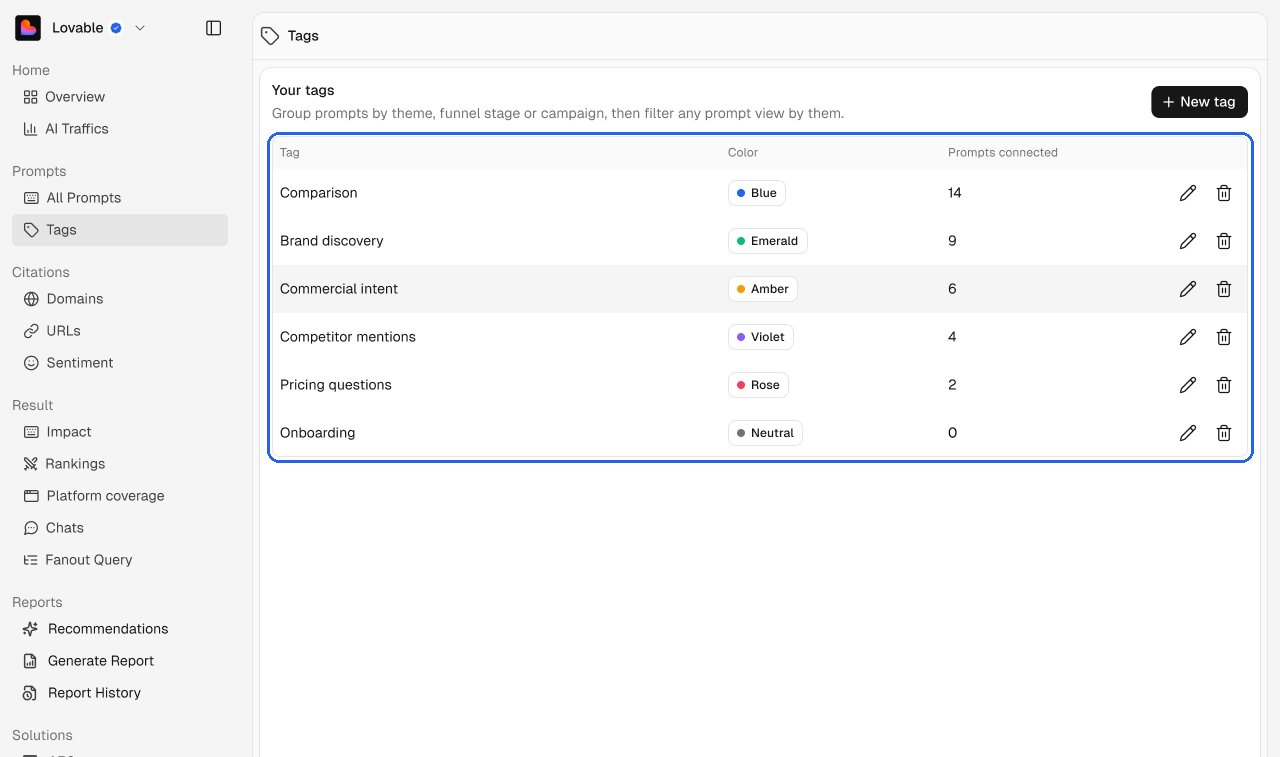
Go to Prompts → Tags. The table lists every tag with its color and how many prompts use it. Tags are shared with everyone in the workspace.
Create a tag
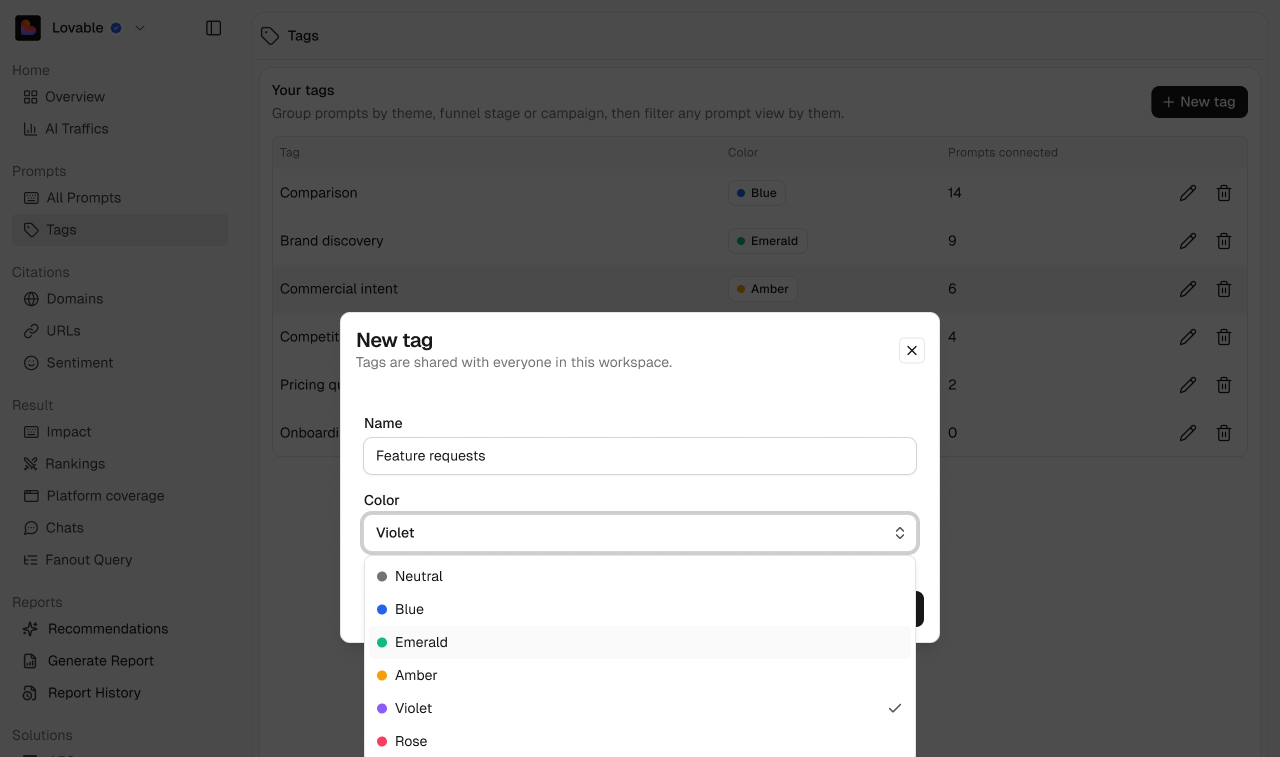
Click New tag.
Enter a Name.
Pick a Color: Neutral, Blue, Emerald, Amber, Violet or Rose.
Save the tag.
Each name can only be used once. If the name is taken, you'll see an error and can choose another.
Edit or delete a tag
Click the pencil to rename or recolor a tag, and the bin to delete it.
Use tags on prompts
Add tags when you create or edit a prompt. Then filter All Prompts by tag to compare how that group performs.
💡 Topics and tags work together. Use topics for what a prompt is about, and tags for why you track it, for example Commercial intent or Pricing questions.