All Prompts
Add, organize and compare every prompt you track.
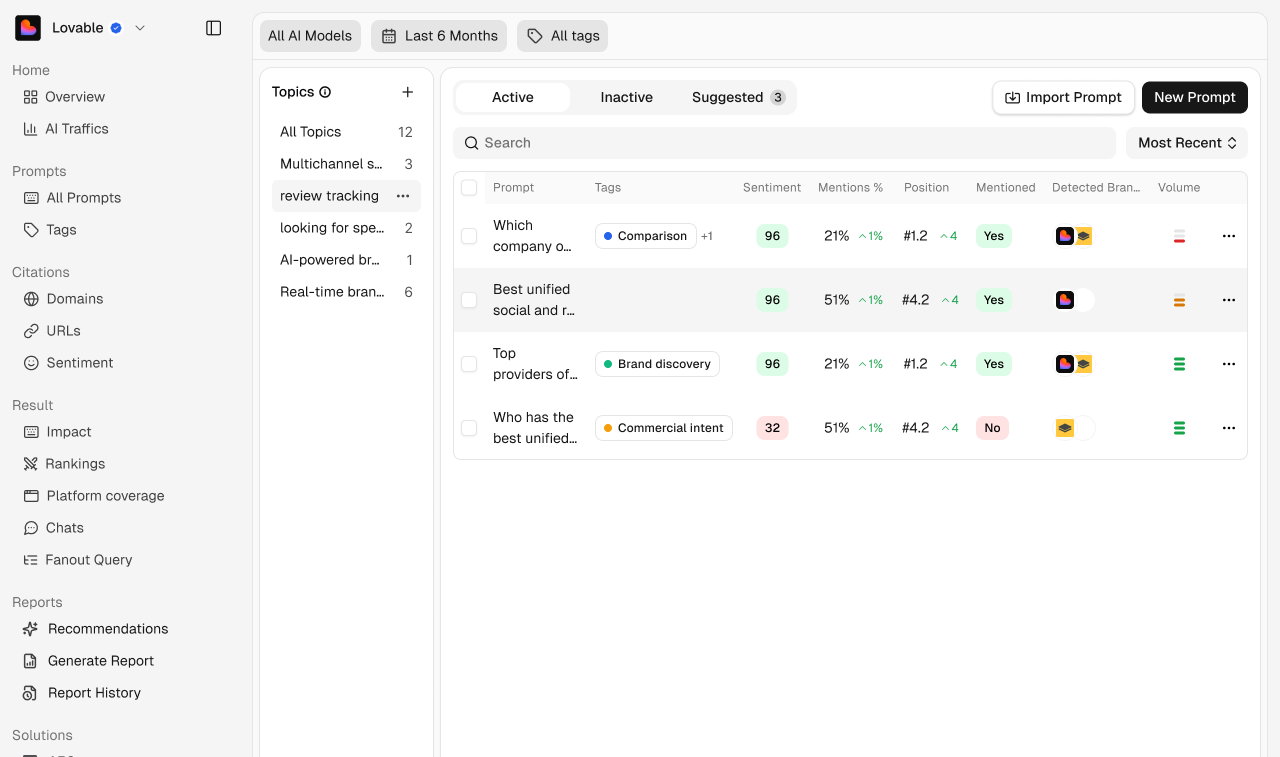
All Prompts is where you manage what Subsig asks AI. Each row is one prompt, with how your brand performs on it.
Filters
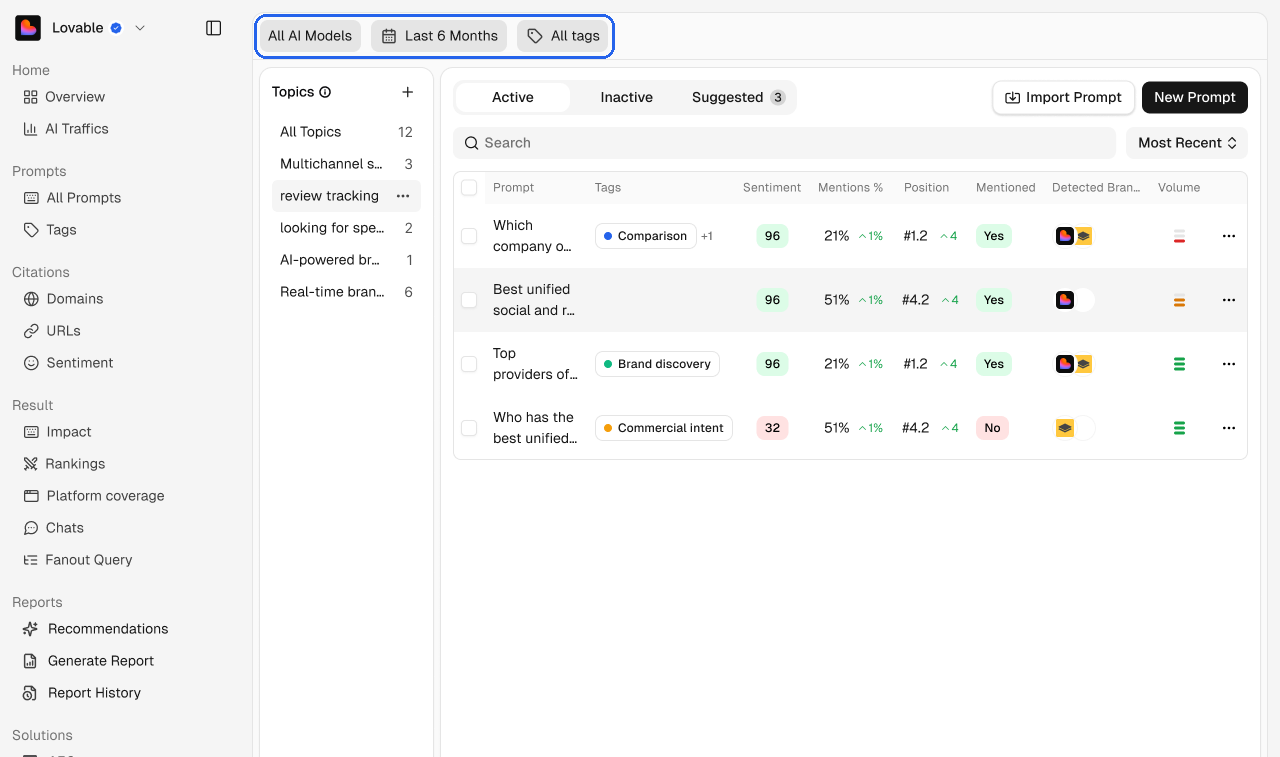
The filters at the top apply to the whole view: AI models, date range and tags.
Topics
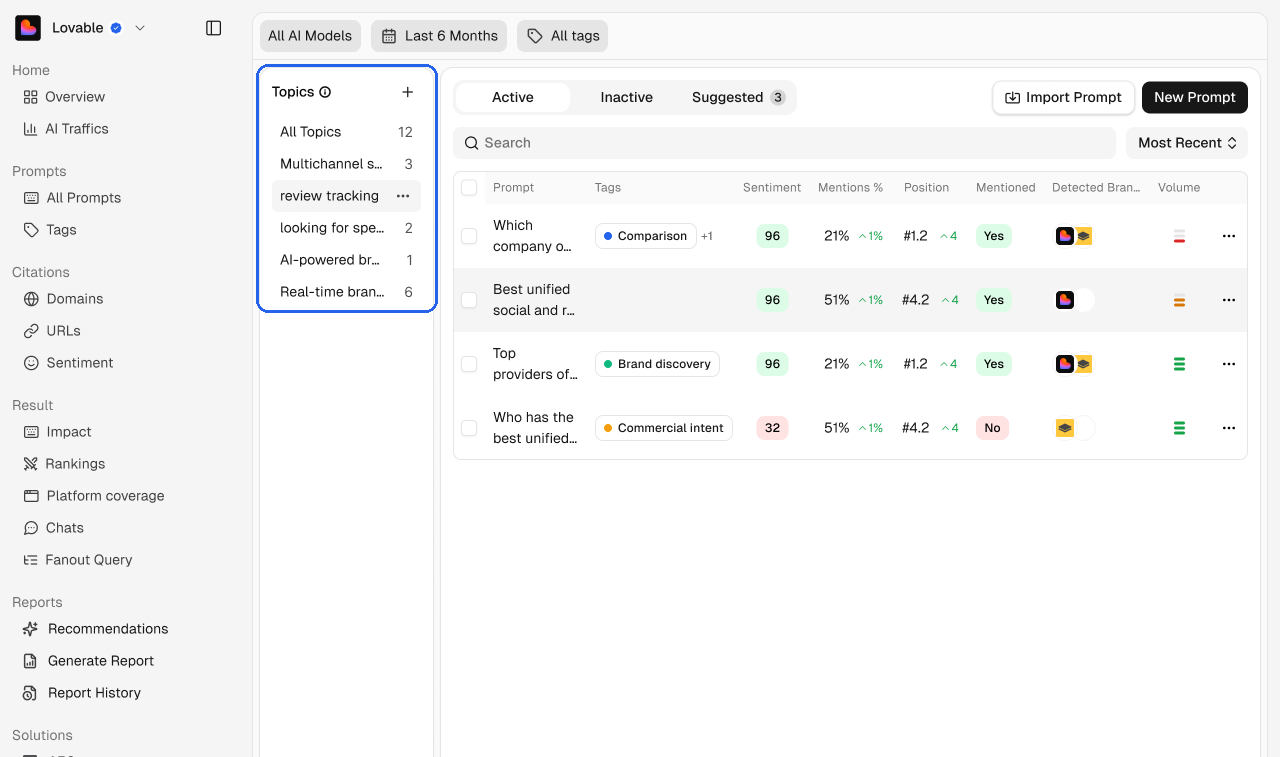
Topics group related prompts. Click a topic to see only its prompts, or All Topics to see everything. Click + to create a topic, and the ⋯ menu next to a topic to manage it.
Active, Inactive and Suggested
Tab | What it shows |
|---|---|
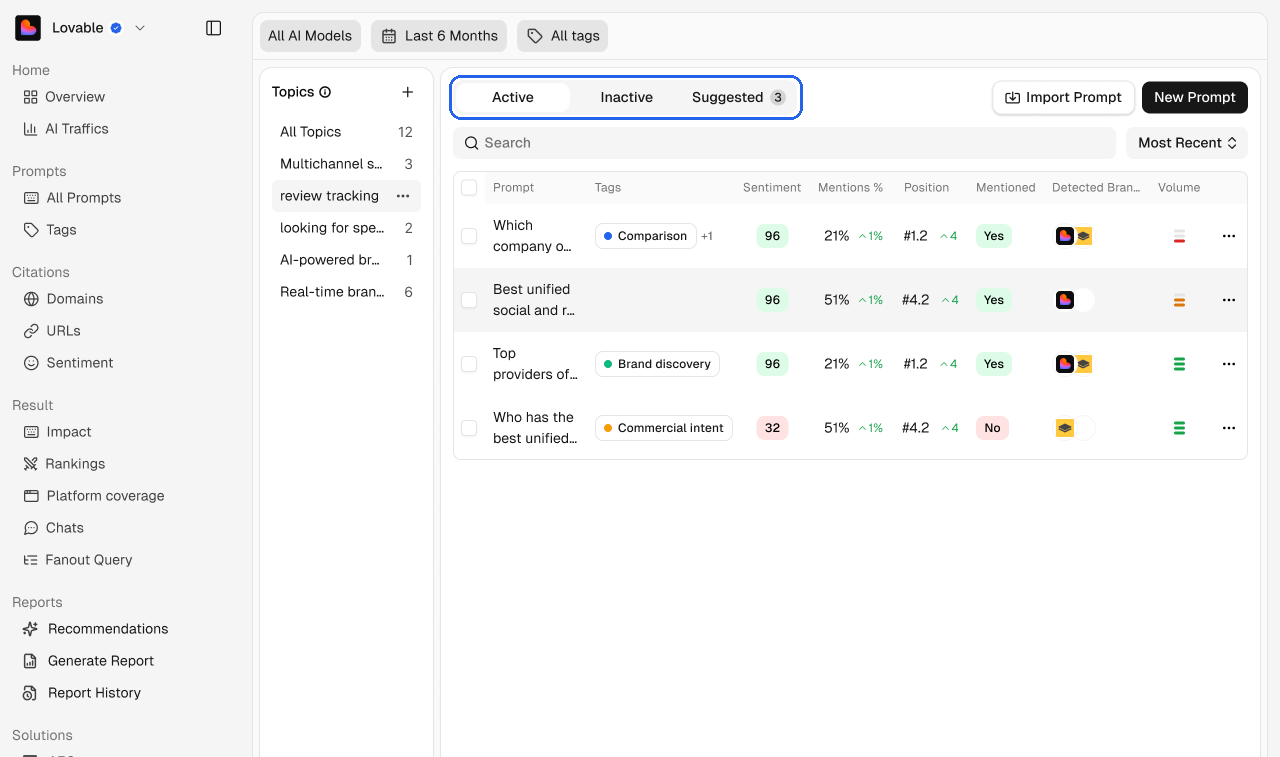
Active | Prompts Subsig is asking AI now. These count toward your plan. |
Inactive | Prompts you've paused. They keep their history but aren't asked. |
Suggested | New prompts we recommend based on your brand and category. The badge shows how many are waiting. |
Reading the table
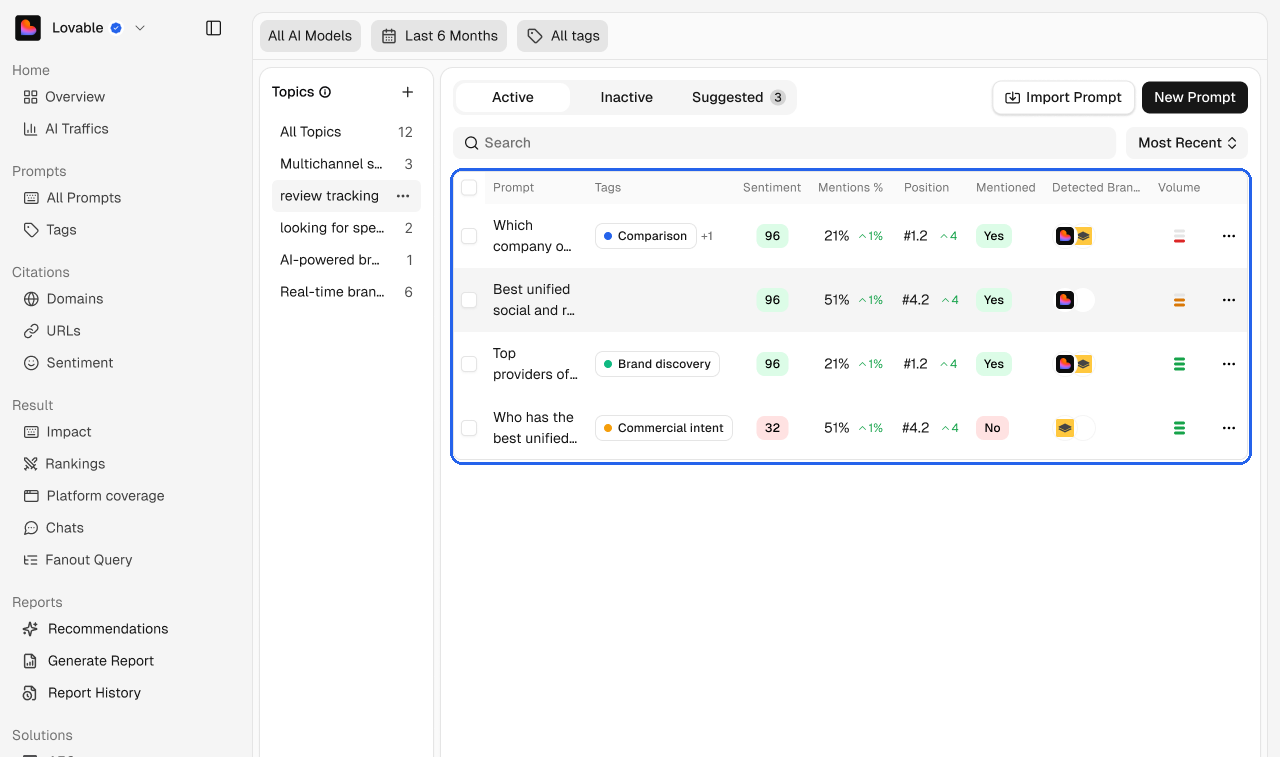
Column | What it shows |
|---|---|
Prompt | The question Subsig asks. |
Tags | The tags on this prompt. |
Sentiment | Your sentiment score in answers to this prompt, out of 100. |
Mentions % | The share of answers that mention your brand, with the change for the period. |
Position | Your average position when mentioned, with the change for the period. |
Mentioned | Whether your brand appears in the latest answers. |
Detected Brands | The brands that appear in the answers. |
Location | The region Subsig asks this prompt from. |
Volume | How often people ask this question, shown as low, medium or high. |
Search by text, sort with Most Recent, and use the ⋯ menu on a row to edit it. Click a prompt to open its detail page.
Add a prompt
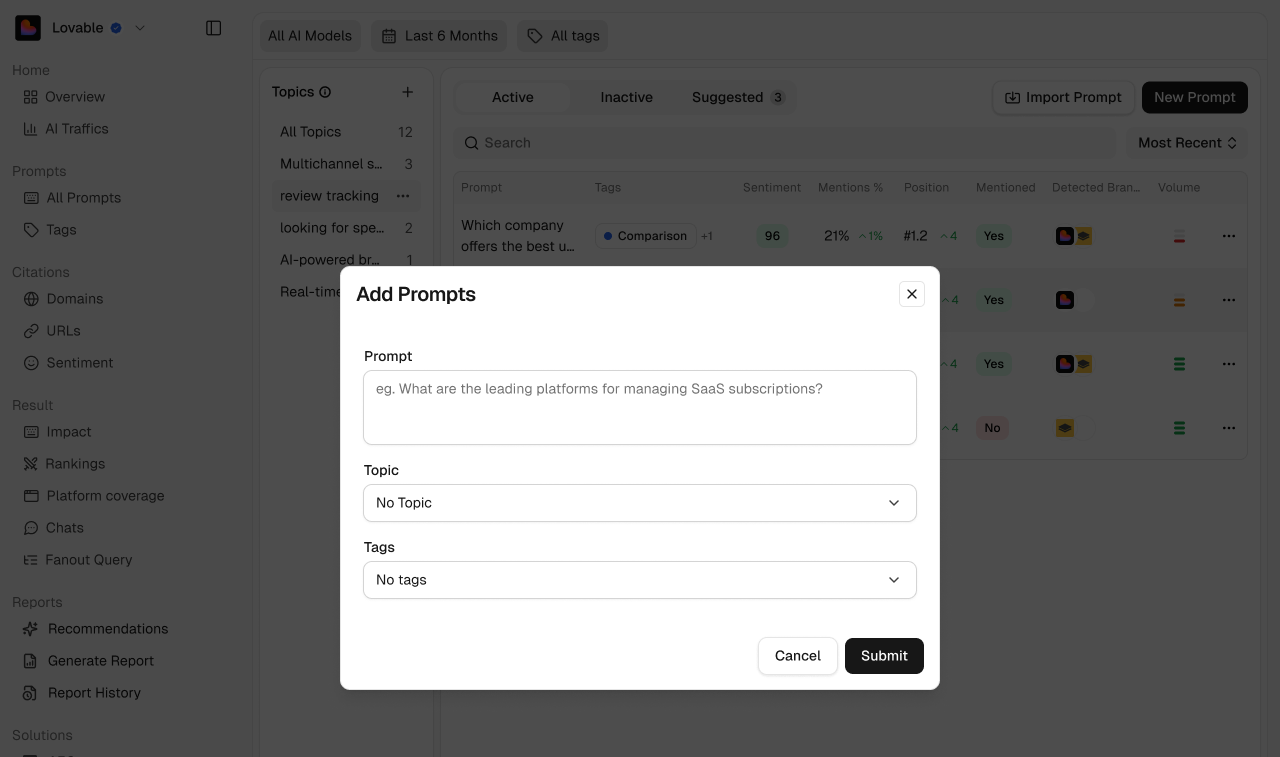
Click New Prompt.
Write the question under Prompt.
Choose a Topic and Tags. Both are optional.
Choose a Region / Country. It starts with your workspace default.
Click Submit.
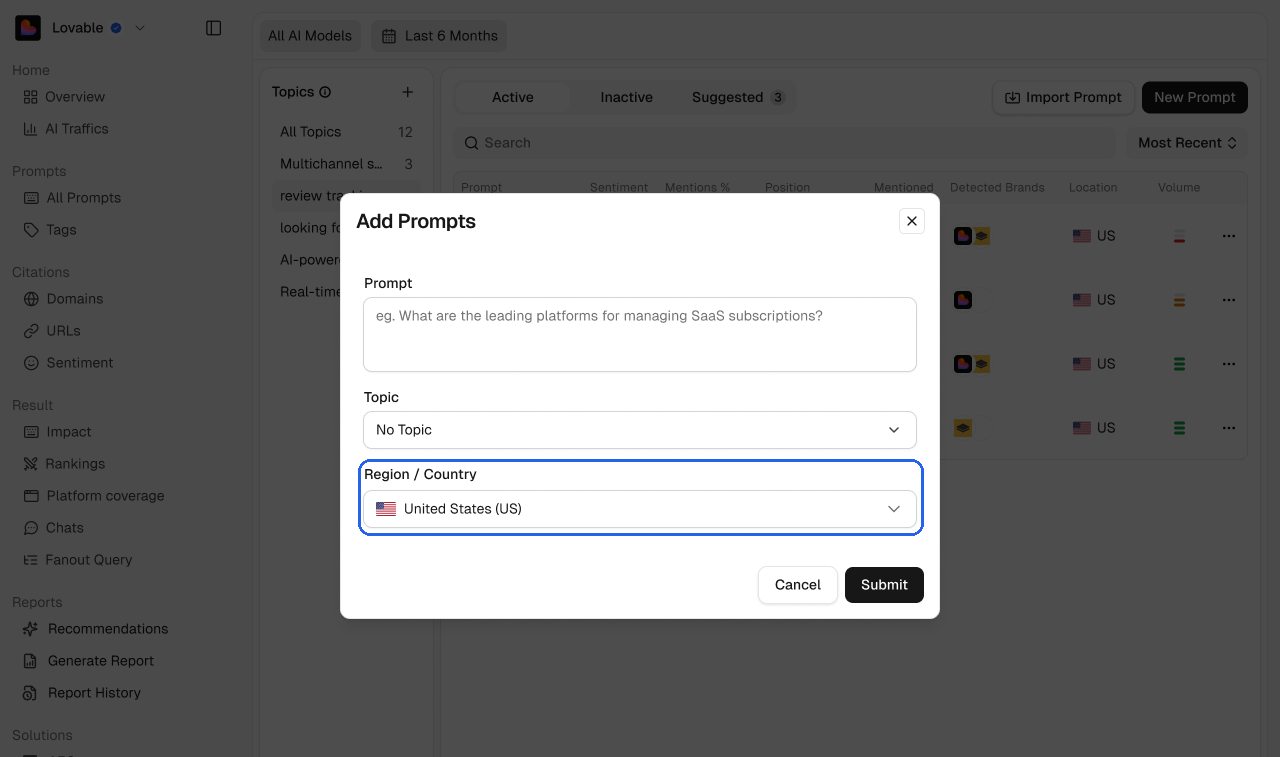
AI answers change by country, so Subsig asks each prompt from its region. Your workspace default comes from Create your workspace and can be changed in Brand settings.
💡 Write prompts the way buyers ask them, without your brand name. "Best tool to build a landing page fast" tells you more than "Is Lovable good?"
To add many prompts at once, see Import prompts.
Filter by tag
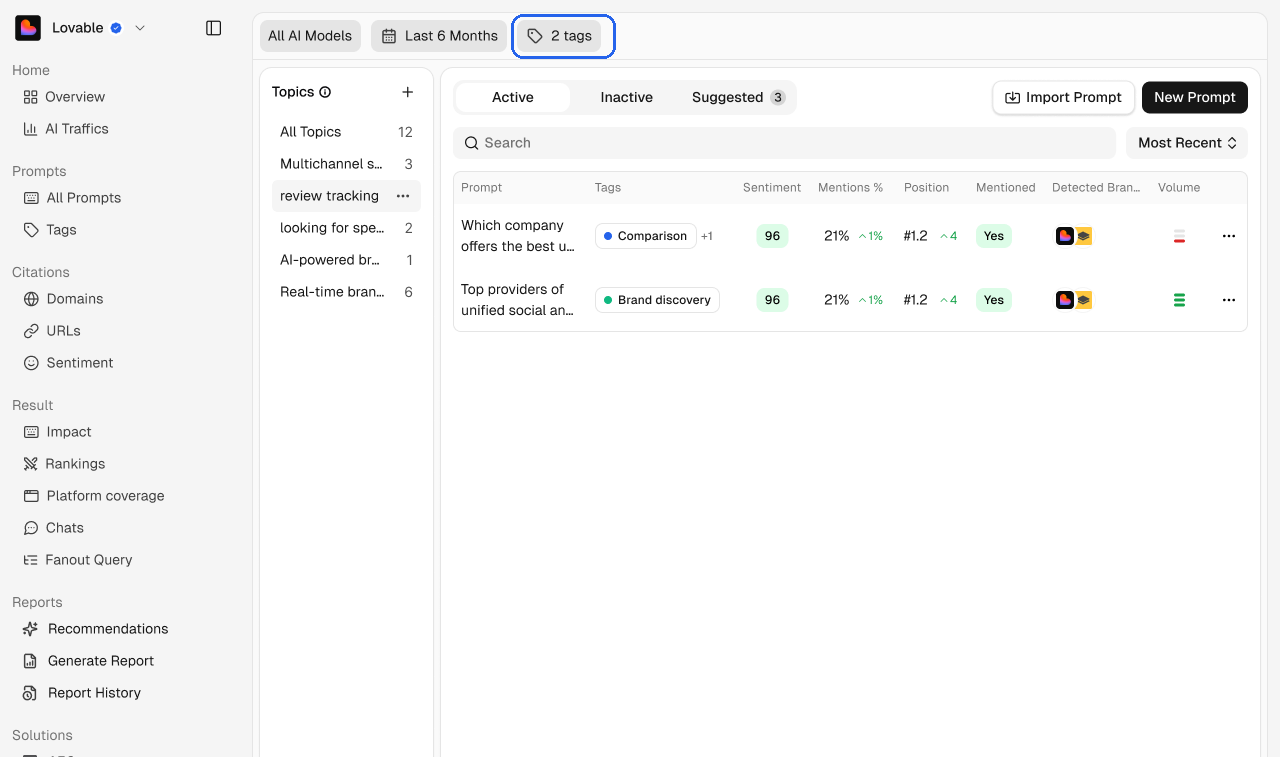
Click All tags and pick one or more tags. The filter shows how many are applied, for example 2 tags. Choose Untagged to find prompts that still need a tag.
Delete prompts in bulk
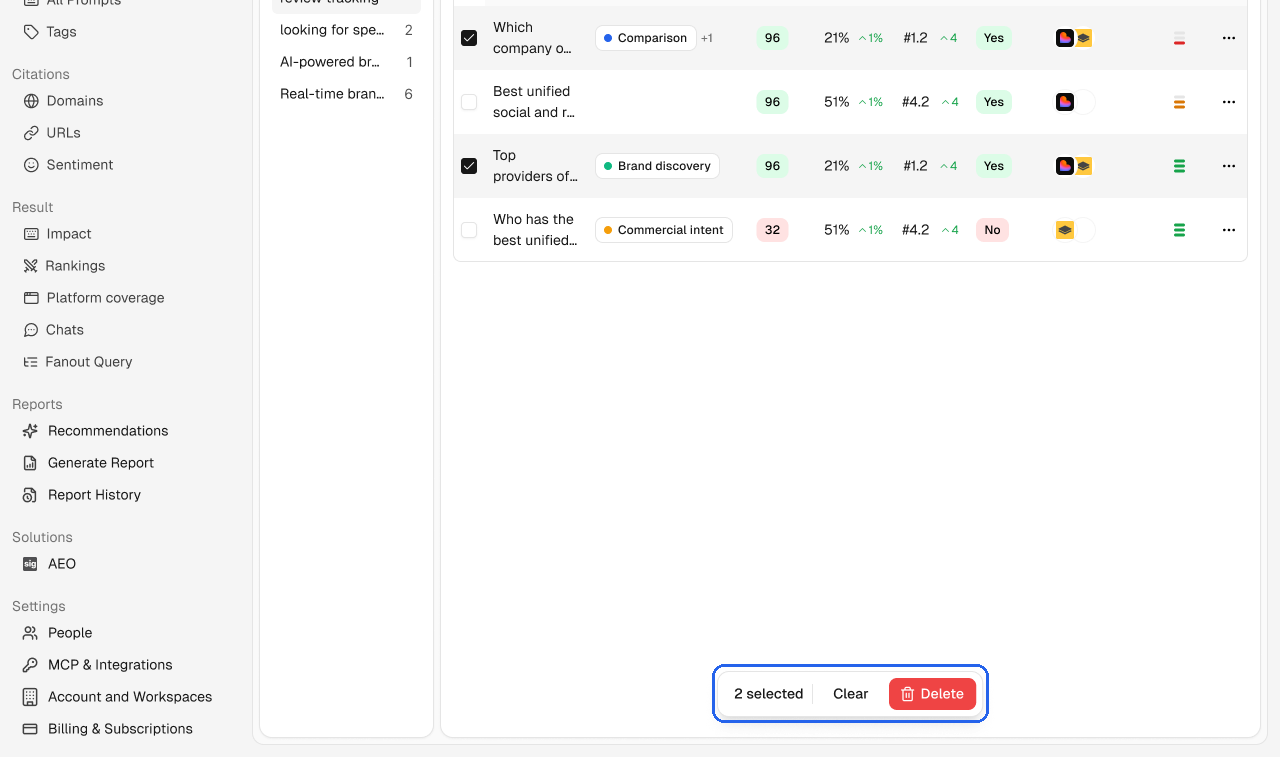
Tick the prompts you want to remove, or tick the box in the header to select all of them.
Click Delete in the bar at the bottom of the page.
Confirm.