Import prompts
Add or update many prompts at once from a CSV file.
Click Import Prompt at the top of All Prompts.
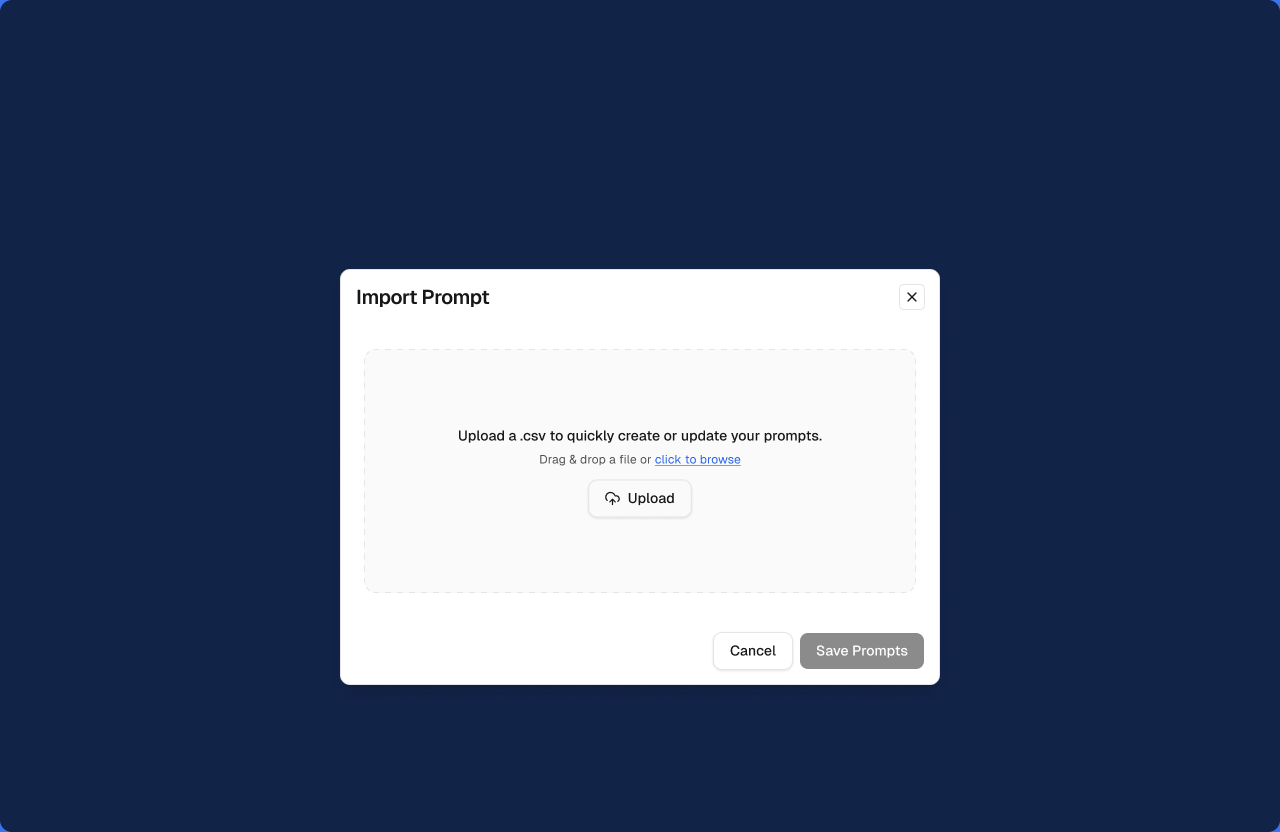
Drag a .csv file into the box, or click Upload to choose one.
Choose a Topic for the imported prompts.
Check the prompts found in the file, and untick any you don't want.
Click Save Prompts.
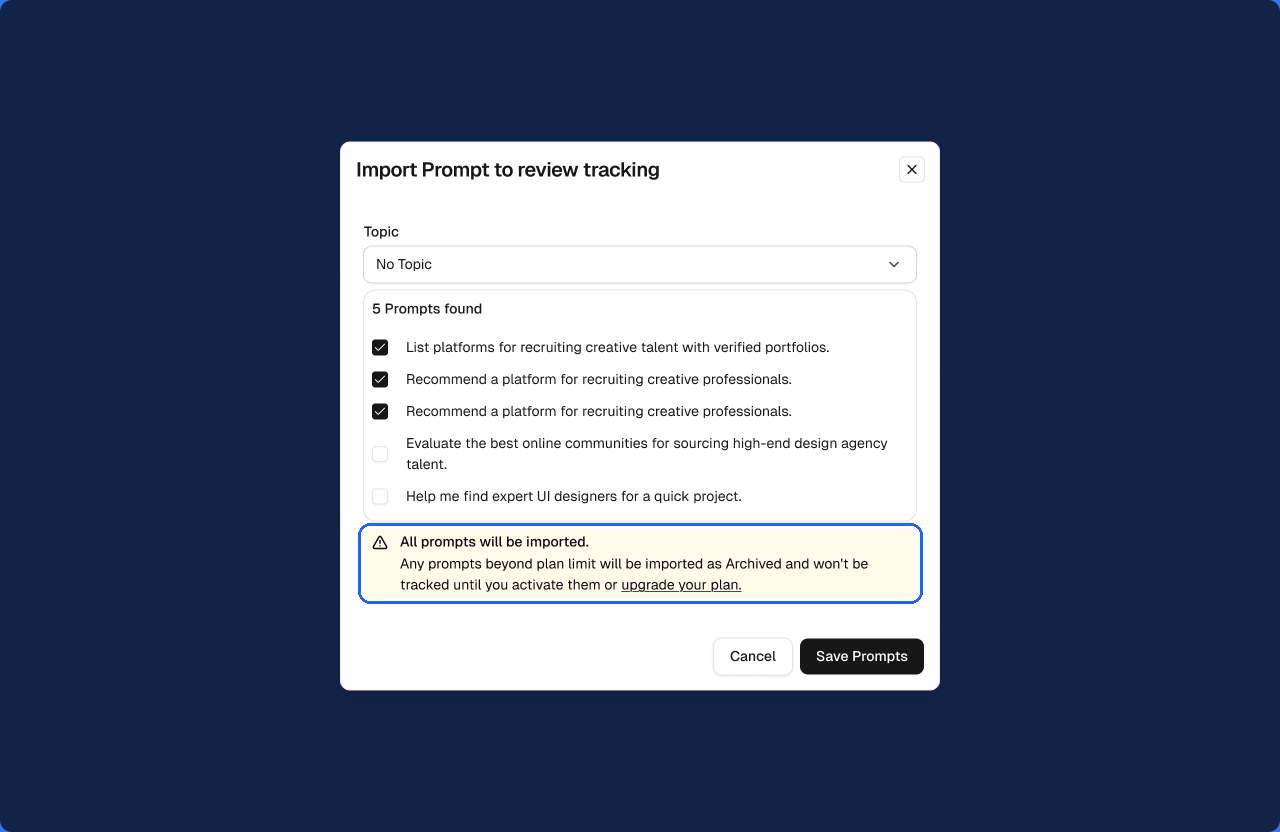
Prompts beyond your plan's limit are imported as Archived. They aren't tracked until you activate them or upgrade your plan.
When the import finishes, you'll see a confirmation and the prompts appear in the list.